 Falling
← OffDisk - Offline Disk Catalog & Finder
User guide — OffDisk - Offline Disk Catalog & Finder
OffDisk keeps a catalog of all your archive disks: external hard drives, USB sticks, NAS shares or plain folders. Once a disk is cataloged, you can search its files and know where they are even when the disk is in the drawer. This guide takes you from the first steps to the more advanced features.
First start
The first time you open OffDisk, it welcomes you and asks for two things:
- Catalog folder: where to save the catalog, the list of the files of all your disks. The suggestion is
Documents\OffDisk. - Backups: how often to back up the catalog automatically and which folder to save the backups in.
At the bottom you can choose whether to create an OffDisk icon on the desktop.
Press Start. You can change everything later in Settings.
If the folder you choose already contains an OffDisk catalog (for example one created on another PC), that catalog is opened.
Cataloging a disk
- Connect the disk to the PC.
- In the sidebar, press Catalog a disk.
- Choose the disk in the list. If you don't see it, press Refresh list. You can also catalog a single folder with Choose a folder instead of a disk.
- Check the suggested Disk name and, if you like, add some Notes, for example "shelf A" or "2026 projects".
- Choose the options and press Start cataloging.
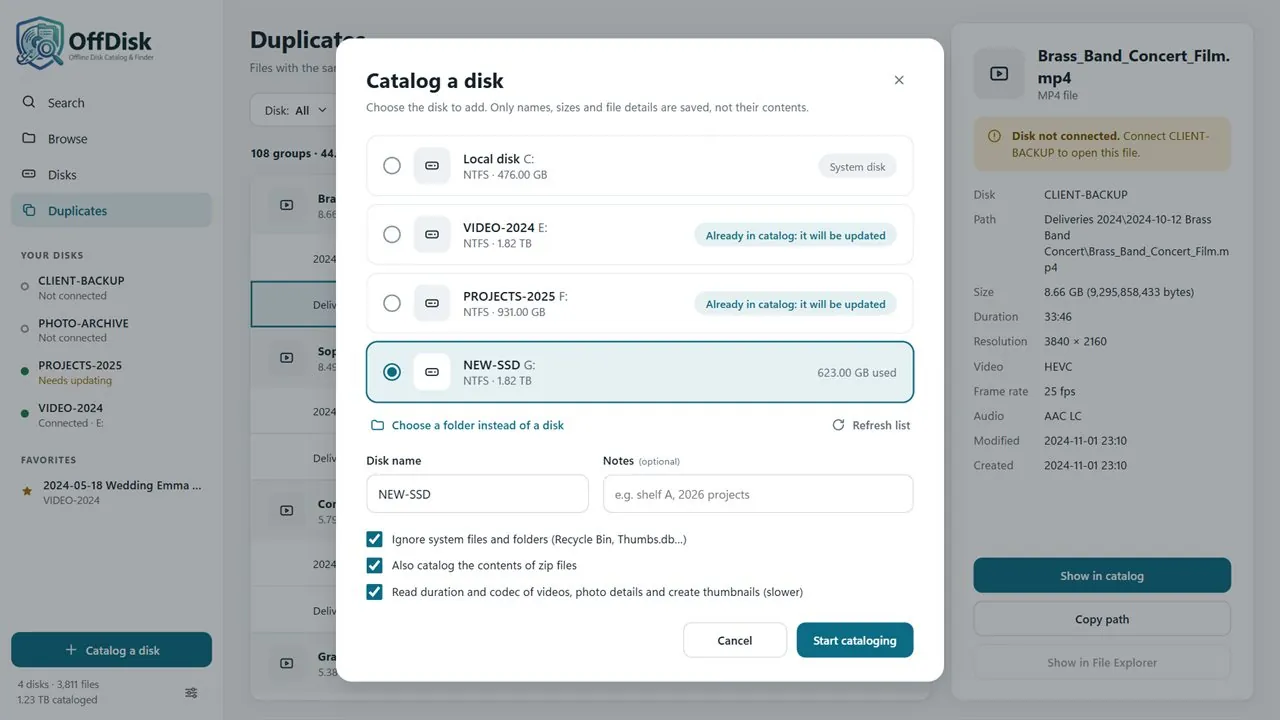
There are four options:
- Ignore system files and folders: leaves out the Recycle Bin, Thumbs.db and the like.
- Also catalog the contents of archives: lets you find files inside zip, 7z, RAR, TAR (including
.tar.gz), CAB, ISO and other archives (see Archives). - Read duration and codec of videos, photo details and create thumbnails: adds duration, resolution, codec, camera, shooting date and a preview, camera RAW photos included. It is slower, especially with many videos on a traditional hard drive.
- Also catalog the text of documents: also saves the text of PDF, Word, Excel, PowerPoint and other documents, so you can search inside them (see Searching the text of documents). It is off by default: cataloging gets slower and the catalog takes more space.
While OffDisk is cataloging you see the progress percentage, and you can press Continue in background to keep using the app: the progress stays visible at the bottom of the sidebar. When cataloging ends you hear the Windows notification sound, so you notice it even while using another program (you can turn it off in Settings, under Notifications). If you press Stop, the catalog is left as it was.
OffDisk saves names, sizes, dates and file details and, only if you enable the option, the text of documents. It never changes anything on the disk.
Searching for a file
On the Search page, type part of the name of the file or folder. The search covers all your disks, including the disconnected ones.
- Use
*for "any text" and?for "any single character": for examplewedding*2024orIMG_00??.jpg. - Narrow the results with the Disk, Type (videos, images, audio, documents, archives, folders only…), Size and Modified filters.
- Turn on Also search in paths to find a file by the name of the folder that contains it.
- Clear filters resets everything.
Every result shows which disk holds the file and whether that disk is connected right now.
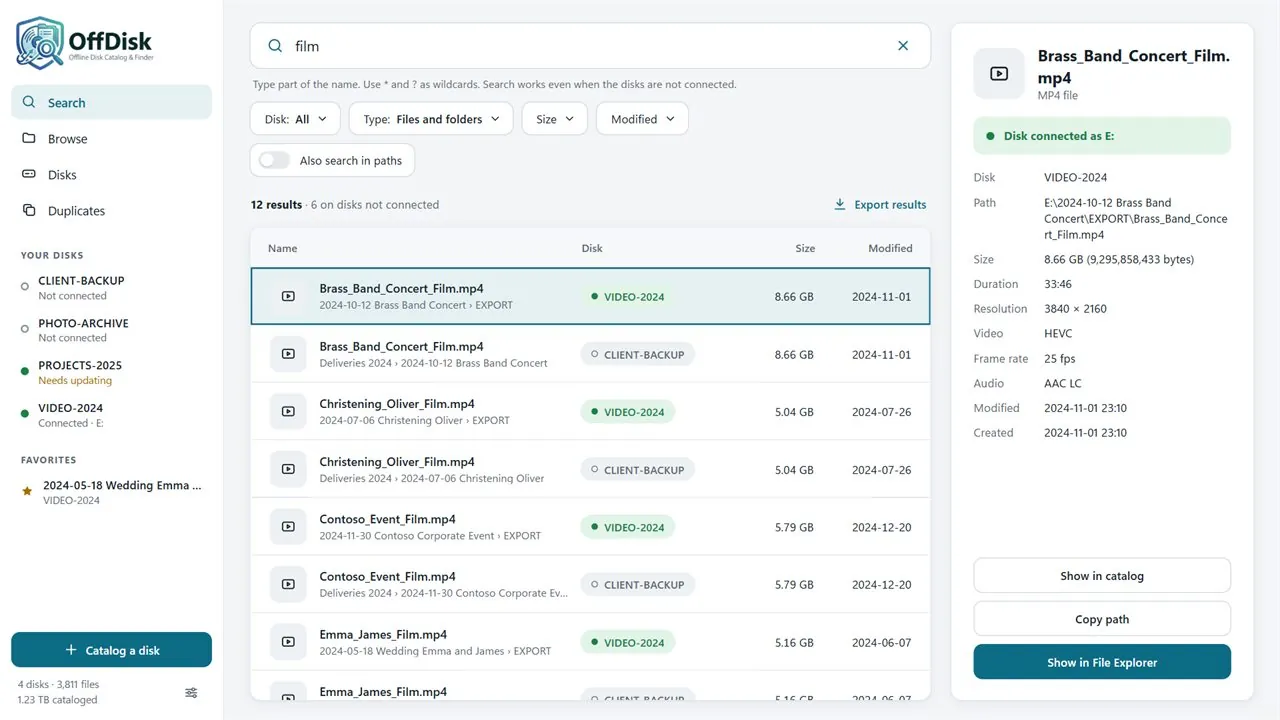
Select a result to see its details on the right: path, size, dates and, for photos and videos, thumbnail, duration, resolution and more.
- If the disk is connected, Show in File Explorer opens the folder with the file already selected.
- If the disk is not connected, OffDisk tells you which disk to connect.
- Copy path copies the full path of the file.
- Show in catalog opens the file's folder on the Browse page.
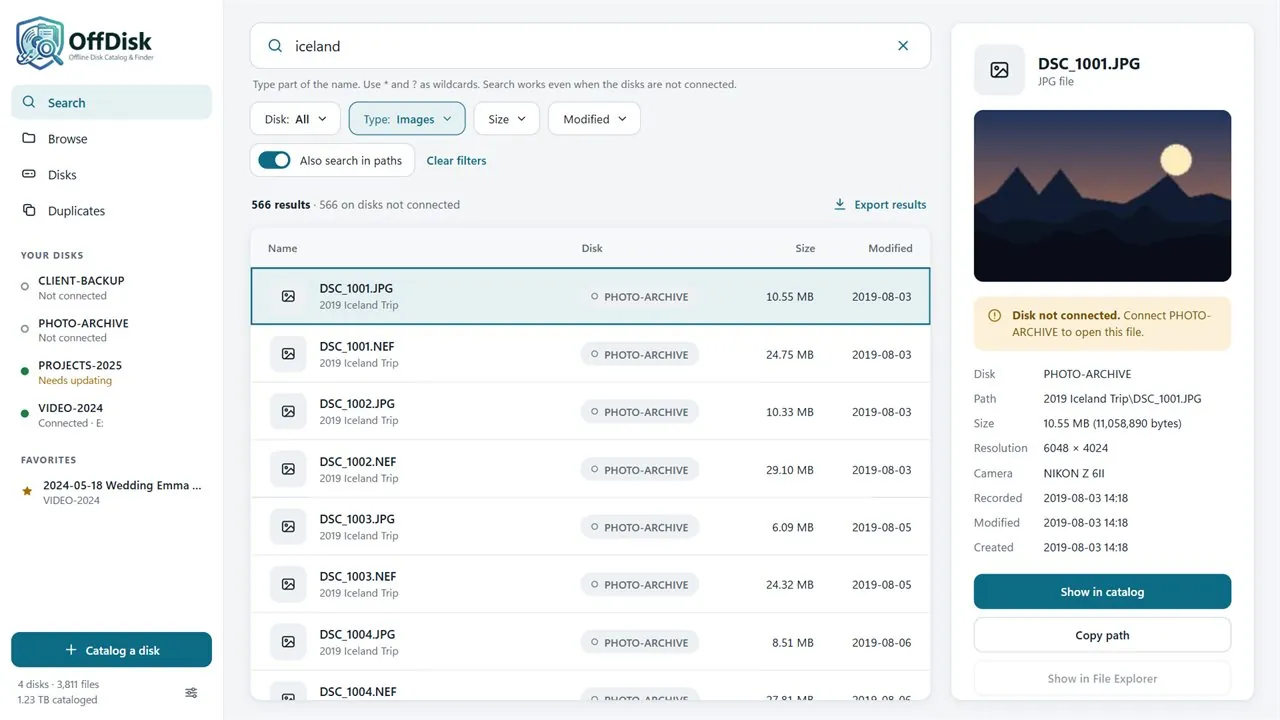
To save the list of results, press Export results: you get a CSV file that opens in Excel.
Searching the text of documents
If you have cataloged at least one disk with the Also catalog the text of documents option, the Search page shows the Search the text of documents switch. Turn it on and type the words to look for: OffDisk finds the documents that contain all of them, even when the disk is disconnected.
- For an exact phrase use quotes:
"rental agreement". - To find words that start in a certain way add
*:contract*finds contract, contracts, contractor… - Case and accents are ignored:
cittaalso finds "Città". - The Disk, Type, Size and Modified filters work as usual.
Results are sorted by relevance, and under the name of each document you see a short excerpt with the words found highlighted. When you select a result, the details show a longer excerpt.
The formats read are PDF, Word (DOCX and DOC), Excel (XLSX and XLS), PowerPoint (PPTX and PPT), OpenDocument (ODT, ODS, ODP), RTF and text files (TXT, MD, CSV, LOG). If the Also catalog the contents of archives option is on too, OffDisk also reads the documents inside archives: in zip files of any size, in the other archives (7z, RAR, TAR…) up to 100 MB. For each document OffDisk saves at most about 200,000 characters of text, and the first 100 pages of PDFs.
To turn the option on for a disk that is already cataloged, connect it, press Catalog a disk, choose it and tick the option: OffDisk updates the disk reading only the documents.
Archives (zip, 7z, RAR…)
With the Also catalog the contents of archives option OffDisk lists the files inside archives as if they were folders: in the search they show up with the archive name in their path, and in Browse archives open like a folder, even with the disk disconnected.
- Formats read: zip, 7z, RAR (including RAR5), TAR and its variants (
.tar.gz,.tgz,.tar.bz2,.tar.xz,.tar.zst…), CAB, ISO, CPIO, LZH and XAR. - What is saved: name, size and date of every file. The list is read in a fraction of a second, even for archives of tens of GB, because nothing is decompressed.
- Document text: with the text option, OffDisk also reads the documents inside archives up to 100 MB (in zip files, of any size).
- Password-protected archives: they are not opened. If the password also protects the file list (a 7z with the "encrypt file names" option), the archive stays a normal file; if it protects only the contents, you see the file names but their text is not read. The details show "has password-protected files".
- Not read: archives split into several volumes (
.part1.rar,.r00,.001),.gzfiles that contain a single file,.tar.gzand similar over 1 GB, UDF disc images, DMG, WIM and.img.
OffDisk uses the archive library included in Windows 10 and 11. On an older version of Windows some formats may not be supported: those archives then stay normal files.
To include the archives of a disk that is already cataloged, connect it and press Update: the archives are read again, the rest of the disk is taken from the catalog.
Browsing a disk
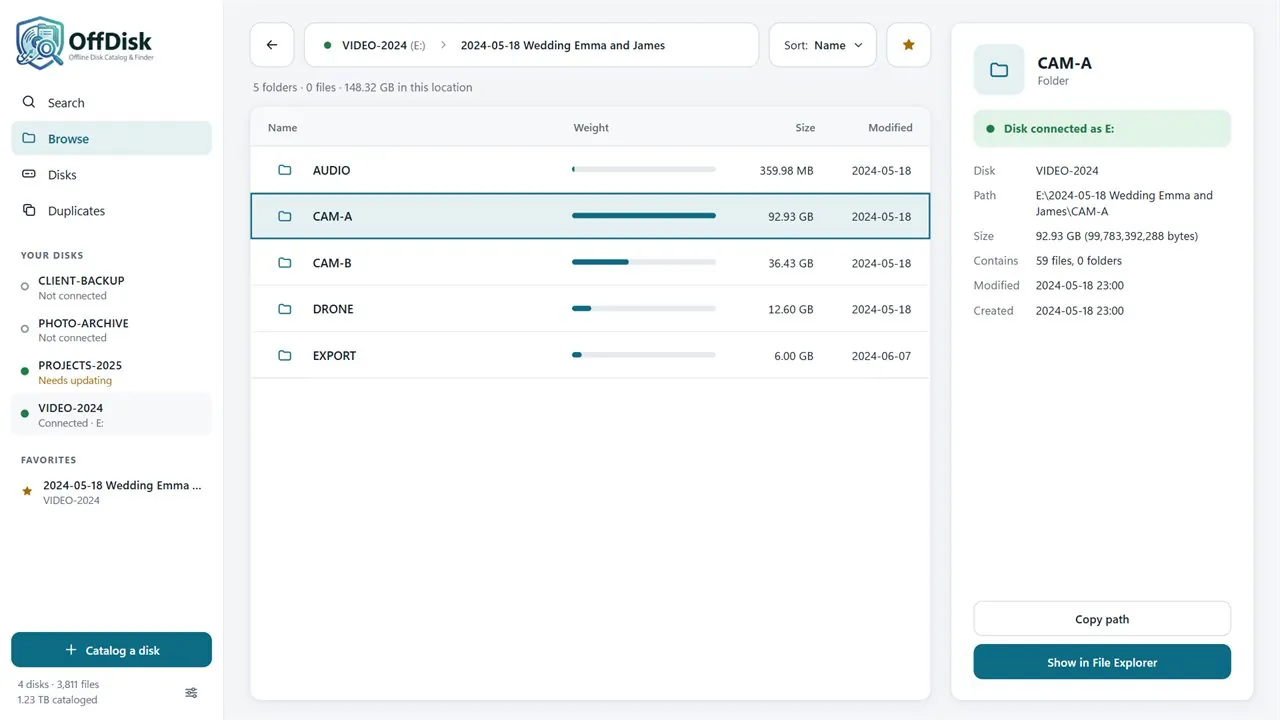
Choose a disk under Your disks in the sidebar to see its folders as in File Explorer, even when the disk is not connected. For every folder you see its weight and number of files, so you can tell at once what takes up the most space.
- Use Sort to order items by name, size or date.
- With Add to favorites a folder appears under Favorites in the sidebar, one click away.
Managing your disks
The Disks page shows all the cataloged disks: space used, number of files and date of the last update.
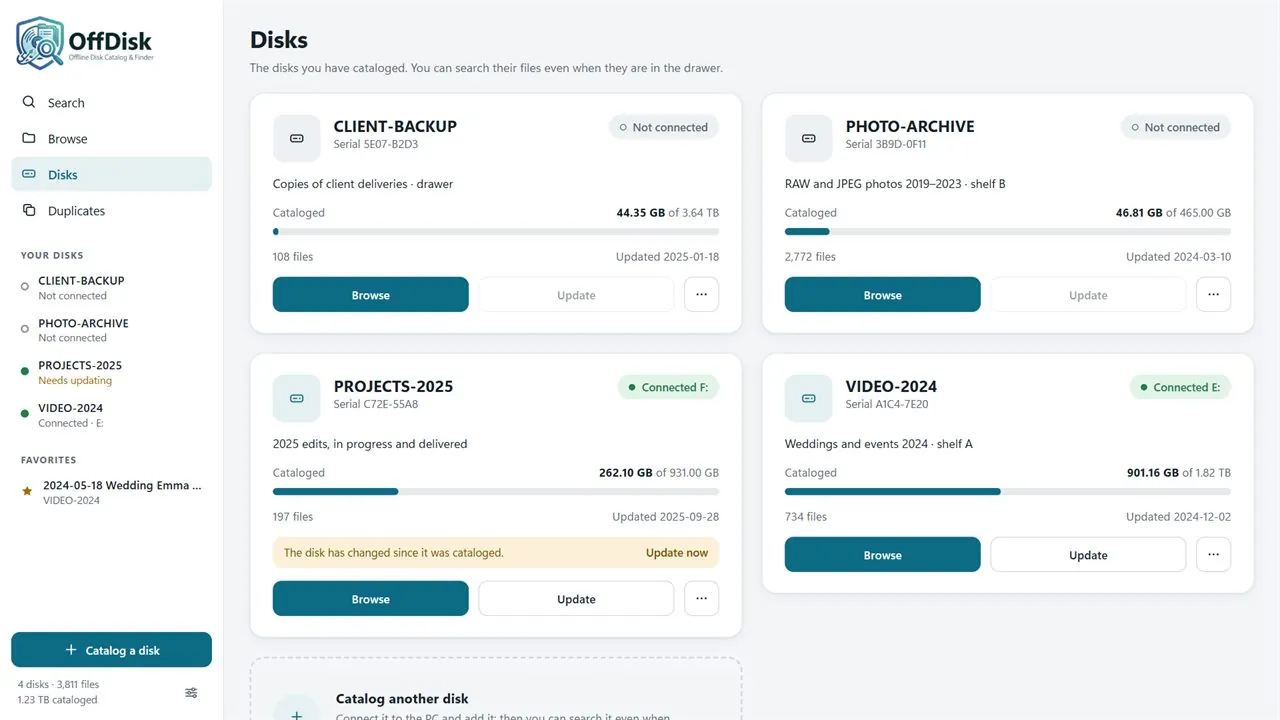
- When the contents of a disk change, connect it again and press Update. If OffDisk notices that a connected disk has changed, it marks it as Needs updating and offers Update now. The Update button also appears in the sidebar, next to the disk name.
- Updating is much faster than the first cataloging: the details and thumbnails of photos and videos that haven't changed are taken from the catalog, and only new or modified files are read.
From the More menu of each disk you can:
- Rename and notes…: change the disk name or notes;
- Printable list (PDF)…: create a PDF with the folders of the disk, their weight and number of files, to keep with the disk (optionally with the full list of files);
- List for Excel (CSV)…: save the list of all the files of the disk;
- Remove from catalog: remove the disk from the catalog. The files on the disk are not touched and you can catalog it again whenever you like.
OffDisk recognizes each disk by its volume serial number, file system and capacity: even if Windows gives it a different drive letter, it is still the same disk in the catalog. If two disks are identical, for example because one is a cloned copy of the other, OffDisk tells them apart by their label (the volume name in File Explorer); if the label is the same too, it does not consider them connected, so as not to mix them up. In that case give the two disks different labels.
Finding duplicates
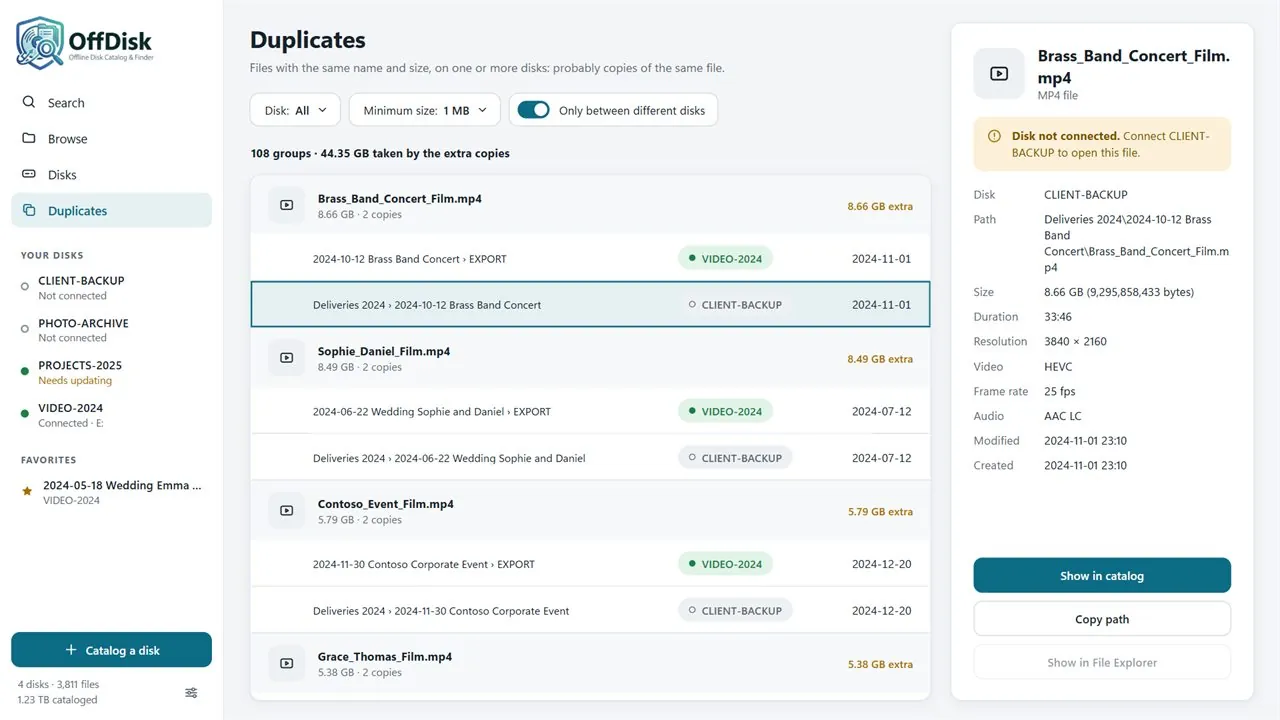
The Duplicates page collects files with the same name and size: almost always copies of the same file, on the same disk or on different disks. For each group you see how many copies there are and how much space the extra ones take.
- Minimum size hides small files, so you see the duplicates that take up the most space first.
- Only between different disks shows only files found on more than one disk.
Catalog and backups
In Settings you'll find everything about the catalog:
- Catalog → Move…: moves the catalog to another folder. If the chosen folder already contains a catalog, OffDisk offers to open it.
- Automatic backup: every 7, 15 or 30 days, or Off. OffDisk keeps the last 5 backups.
- Backup folder: to protect the catalog even if the PC disk fails, choose a folder on another disk or a synchronized folder (OneDrive, Dropbox…).
- Back up now and Restore a backup…: before restoring, OffDisk saves the current catalog, so you can always go back.
- Compact catalog: reduces the space taken by the catalog file, useful after removing or updating many disks.
Language and appearance
OffDisk is available in English and Italian. In Settings, under Language, you can choose the language or leave Automatic (Windows language). The light or dark theme follows Windows.
In Settings, under Desktop, you can add or remove the OffDisk icon on the desktop. If you uninstall OffDisk, delete the icon yourself.
Trial version and purchase
With the trial version you can catalog one disk and use every feature with it: search, browse, update it whenever you like. To catalog all your disks, press Buy OffDisk: the Microsoft Store opens and, after the purchase, OffDisk unlocks by itself. The disk you have already cataloged stays in the catalog.
Frequently asked questions
Does OffDisk read or change my files?
It never changes them. It reads the names, sizes and dates of the files and, only if you ask it to with the cataloging options, the details of photos, videos and audio and the text of documents, which stay in the catalog on your PC. Without the text option it does not open documents and does not save their contents.
Do I need an internet connection?
No. OffDisk works entirely on your PC and the catalog stays on your PC: it is not sent to anyone.
Can I use my catalog on another PC?
Yes. Copy the catalog file (or a backup) to the other PC, then in OffDisk open Settings → Catalog → Move… and choose the folder that contains it: OffDisk offers to open it.
Why is cataloging slow?
Usually it's the option that reads video and photo details and creates thumbnails: for every media file OffDisk has to read part of it, and on a traditional hard drive with many videos that takes time. Without that option cataloging is much faster. The same goes for the text of documents option, especially with many PDFs. When you update a disk, the files that haven't changed are not read again.
Which photos get a thumbnail?
JPEG, PNG, TIFF, WebP, GIF and BMP images, and camera RAW photos: CR2, CR3, NEF, ARW, DNG, RAF, RW2, ORF, PEF, SRW and other less common formats. For RAW files OffDisk uses the preview that the camera saves inside the file, so no extra software is needed. iPhone HEIC photos don't get a thumbnail, and for videos OffDisk saves duration, resolution and codec but not a picture.
If you cataloged your disks with a version of OffDisk older than 1.0.2, RAW photos don't have a thumbnail yet: connect the disk and press Update. Only the RAW files are read, everything else is taken from the catalog.
Why can't the text search find a document?
Some documents contain no text to read: PDFs created by a scanner or from a photo only contain images, and so do Word documents with scanned pages pasted inside. Password-protected documents, damaged ones and Word 95 or older files also stay without text. Also check that the disk was cataloged with the Also catalog the text of documents option: on the Disks page its card shows "Text of documents cataloged".
Folders synced with OneDrive, Nextcloud or Dropbox look empty
This happened with OffDisk versions before 1.1, which mistook these folders for links. Connect the disk and press Update on the Disks page. For files that are only available online OffDisk saves the name, size and dates, but does not read their contents (no preview or text), so that they are not downloaded from the cloud: their details show "online only (cloud)".
Why isn't a 7z or RAR archive opened in the catalog?
The most common reasons: the archive is password-protected (even on the file list), it is part of an archive split into several volumes, it is damaged, or its "contents of archives" option was off when you cataloged the disk. The file's details show whether it is password-protected. Also check that you pressed Update on the disk after installing version 1.2.
A file is in the catalog but I can't find it on the disk
The file was moved or deleted after the last cataloging. Connect the disk and press Update on the Disks page.
I need help
Write to supporto@fallingbit.it, stating your OffDisk version (you'll find it in Settings → About) and what happened.