 Falling
User guide — USBCopy
Introduction
USBCopy copies the contents of a folder to every USB drive connected to the PC, all at the same time, and if you want it verifies that every file is identical to the original. It is designed for anyone who needs to prepare many identical USB drives: companies distributing promotional material, photographers and videographers delivering their work to clients, schools, events.
- No 26-drive limit: USB drives are recognized even without a drive letter.
- Internal disks, SSDs and external hard disks are never used as destinations.
- The drive that holds the folder to copy (for example your camera's SD card) is always protected.
- Live statistics, file verification, formatting and ejecting of every drive with one click.
The USBCopy window
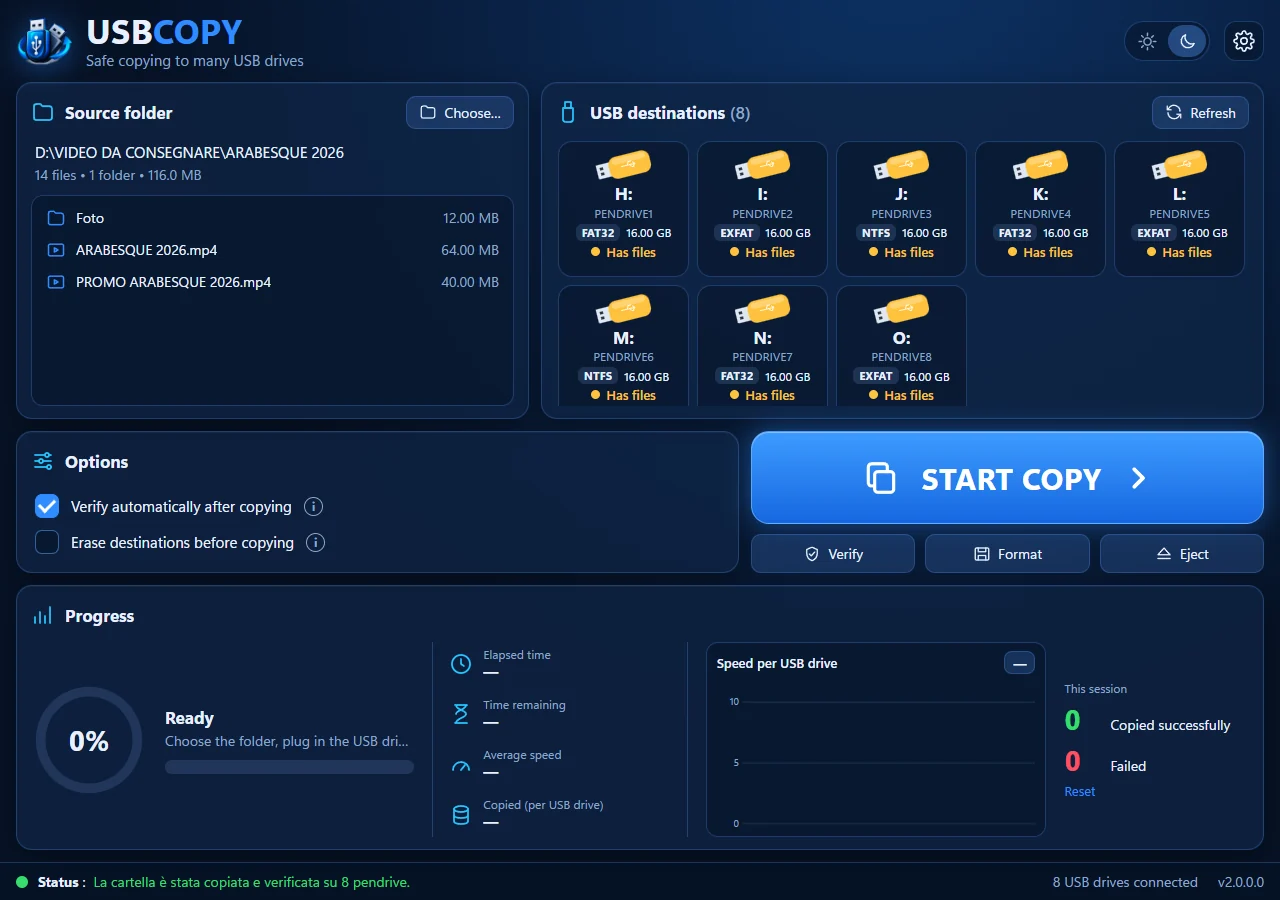
At the top right you find the theme switch (light or dark) and the settings button. At the bottom of the window, the status bar shows what USBCopy is doing, how many USB drives are connected and the program version.
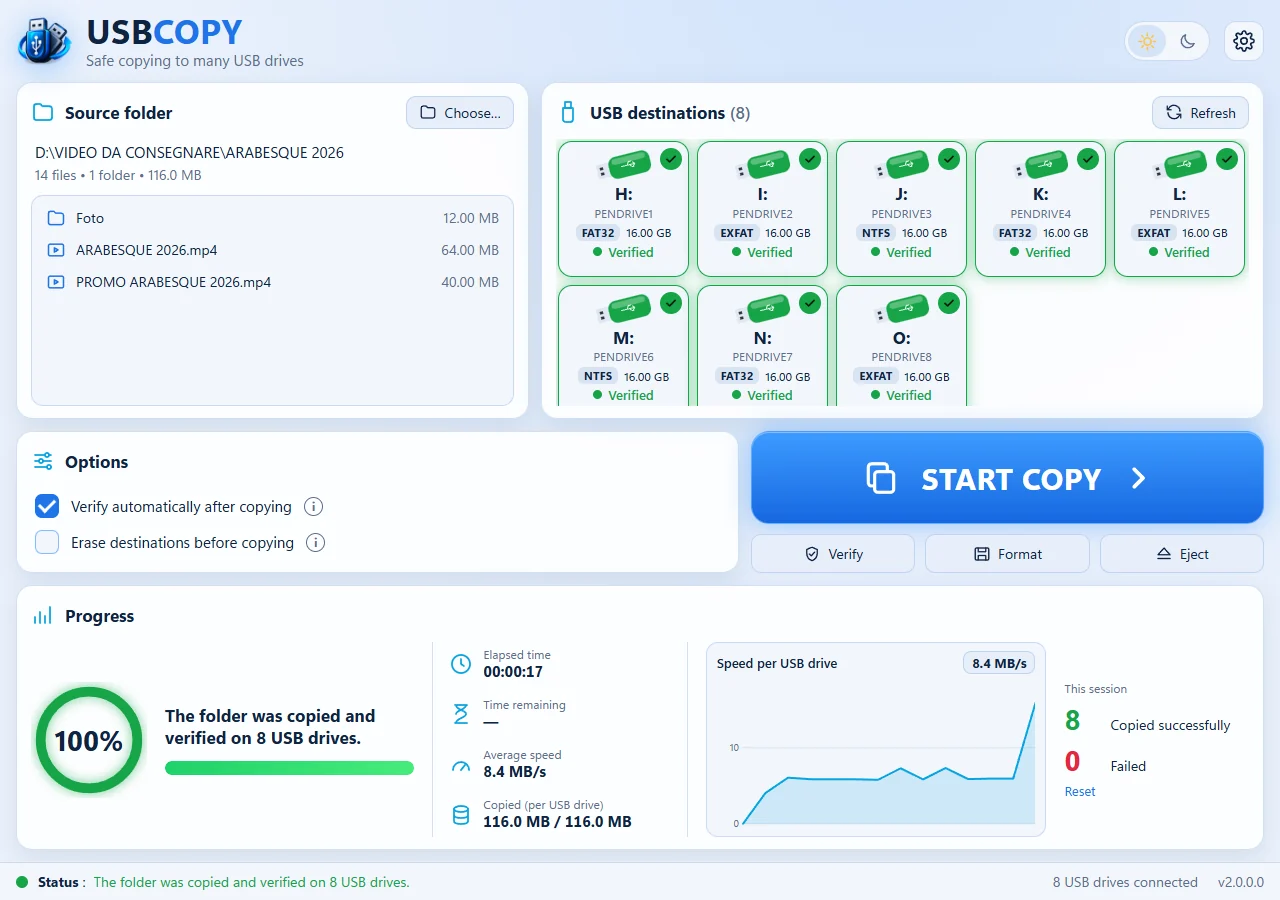
Copying the folder to the USB drives
1. Choose the source folder
Press Choose… in the Source folder box and pick the folder to copy. USBCopy shows its path, the number of files and folders, the total size and the list of items it contains.
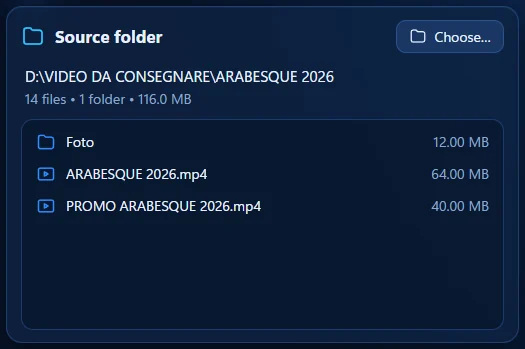
The contents of the folder are copied, not the folder itself: files and subfolders go straight into the root of every USB drive.
The source is always protected. If the folder is on an SD card or a USB drive, that drive is recognized as the Source and is never used as a destination, erased, formatted or ejected.
2. Plug in the USB drives
Plug in the USB drives: they appear by themselves in the USB destinations box, there is nothing to press. The Refresh button only reads them all again immediately. Each card shows the drive letter (or the label, if the drive has no letter), the label, the format (FAT32, exFAT or NTFS), the capacity and the status.
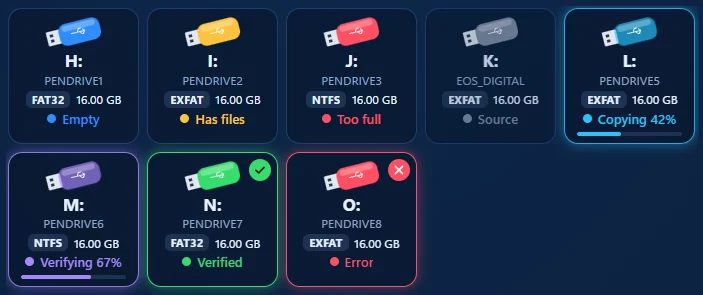
- Empty: the drive is empty and ready for the copy.
- Has files: the drive already holds other files but has enough space: the copy goes next to them (files with the same name are replaced).
- Too full: there is not enough free space. It is left out of the copy, unless you turn on Erase destinations before copying.
- Source: it holds the folder to copy: it is never touched.
- Not formatted: the drive has no readable format: use Format.
- Copying / Verifying / Erasing: operation in progress: the card flashes and shows the percentage.
- Copied / Verified / Formatted: operation completed successfully (green check mark).
- Error: something went wrong: hover over the card to read the problem.
Hovering over a USB drive shows all its details: letter, label, model, format, capacity, free space and connection (USB or SD card reader).
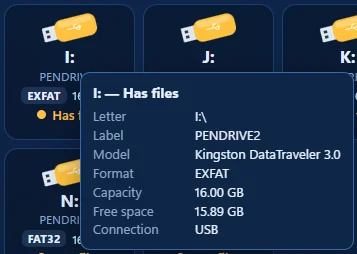
3. Choose the options

- Verify automatically after copying: at the end, every copied file is read back from the drive and compared with the original (using a SHA-256 code). It takes longer, but guarantees that the drives are perfect. Recommended when the drives go to a client.
- Erase destinations before copying: deletes every file on the USB drives before copying. This cannot be undone: USBCopy always asks for confirmation.
4. Start the copy
Press START COPY. USBCopy checks the folder and the drives again, then asks for confirmation, telling you how many drives the folder will be copied to.
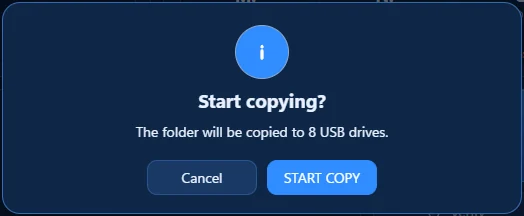
While copying, the button becomes STOP: you can stop at any moment. The file being copied is deleted, so no incomplete files are left on the drives.
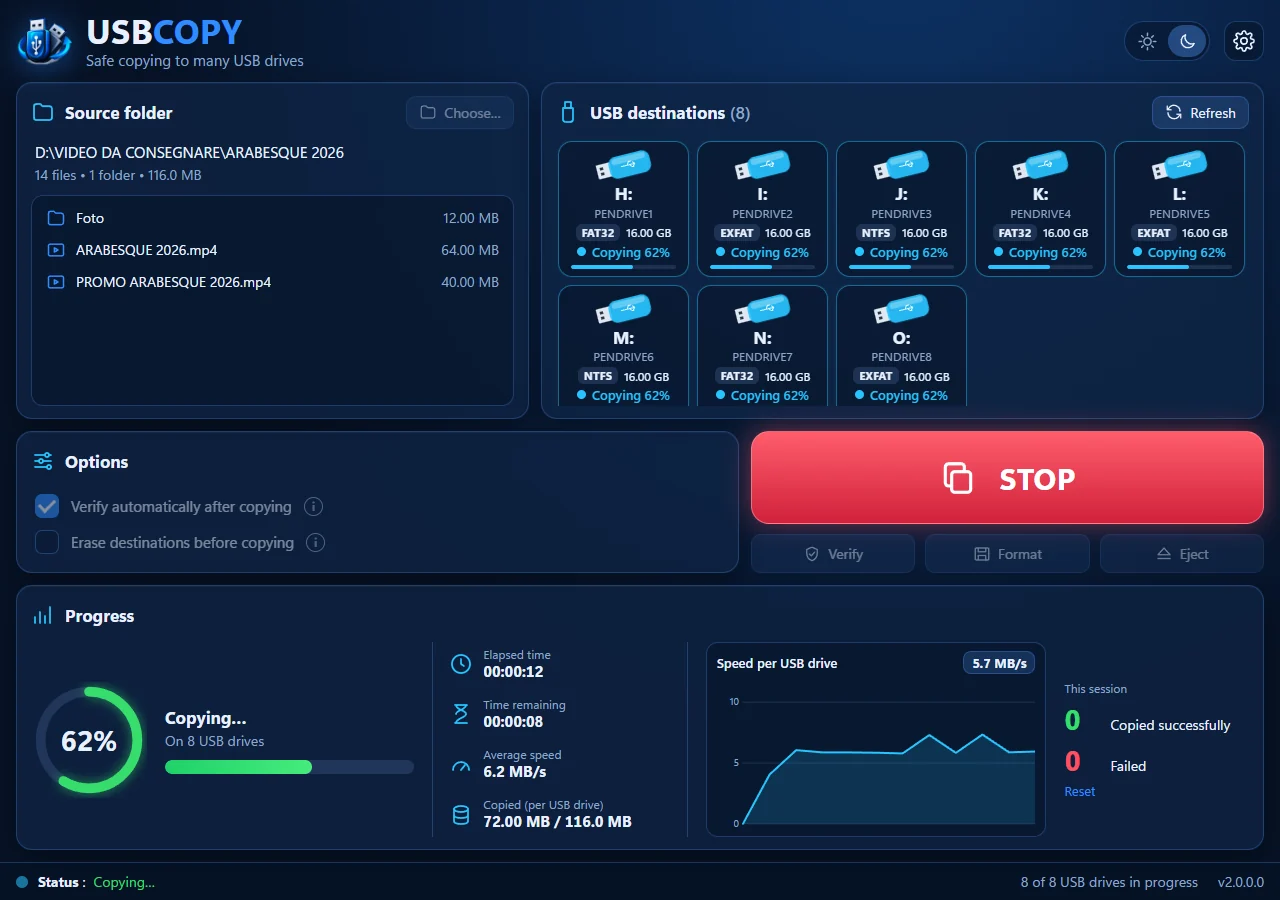
At the end a summary appears and, if enabled in the settings, a sound plays: you know the copy is finished even if you are not looking at the screen. The sound is different if something went wrong.

FAT32 drives and files over 4 GB. The FAT32 format cannot hold files of 4 GB or more (for example long videos). If the folder contains such a file, FAT32 drives are left out with a message: format them as exFAT with the Format button.
Progress and statistics
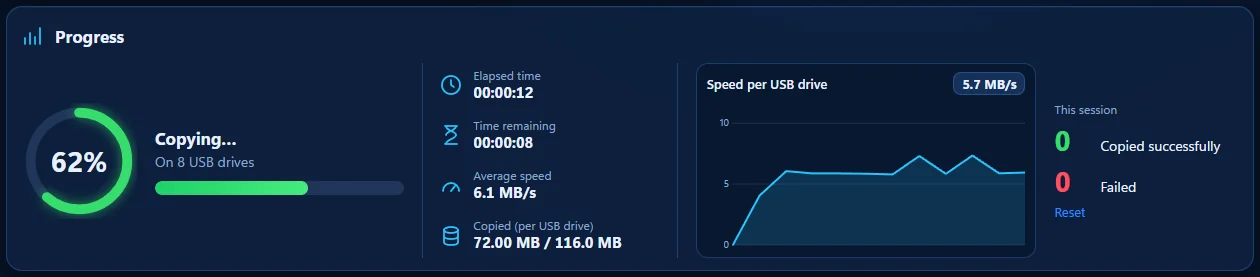
- Ring and bar: percentage of the current phase (erasing, copying or verifying).
- Elapsed time: since you pressed Start copy, verification included.
- Time remaining: estimate of the time left until the end of the current phase, based on the speed of the last few seconds.
- Average speed: average write speed of one USB drive. Hovering over it also shows the total speed of all drives together.
- Copied (per USB drive): data already written to each drive compared with the size of the folder. With 10 drives and a 3 GB folder it reaches 3 GB, not 30.
- Chart: speed per USB drive during the copy.
- This session: how many drives were copied successfully and how many failed since you opened USBCopy. Reset sets the counters back to zero, for example at the start of a new batch.
Why do all the drives go at the same speed? USBCopy reads each file of the folder only once and writes it to all the drives together. This is much faster, especially when the source is an SD card or a slow disk, but the drives move forward together: the speed is that of the slowest drive.
Verification
The Verify button compares the files on every USB drive with the source folder, even later on (for example on drives copied the day before). The source folder is read only once and all the drives are verified together. Verification does not change anything.
If a file is different or missing, the drive turns red and the summary lists the files that do not match:
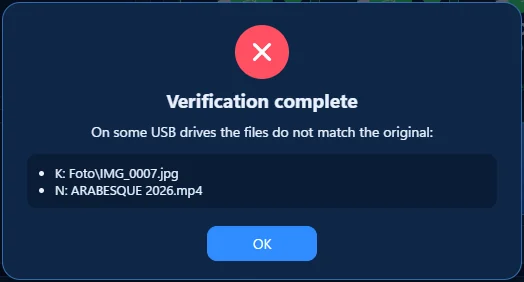
In that case copy that drive again (or replace it: it is often faulty).
Formatting
The Format button formats all connected USB drives together, except the source one, with the same format and the same label (the name shown in File Explorer or on the TV).
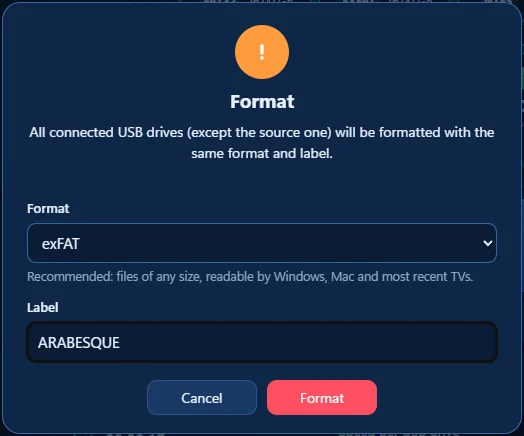
- exFAT (recommended): files of any size; readable by Windows, Mac and most recent TVs and players. Label up to 15 characters.
- FAT32: the most compatible (older TVs, car radios, printers), but files up to 4 GB. Windows only creates it on drives up to 32 GB. Label up to 11 characters, without some symbols.
- NTFS: Windows computers only: many TVs and Macs cannot write to it. Label up to 32 characters.
After your choice, USBCopy asks for a second confirmation: formatting deletes all data and cannot be undone. The drives are formatted at the same time (quick format: a few seconds each). Before formatting, each drive is checked again: if it is no longer a valid USB drive or it is the source drive, it is skipped.
Ejecting
The Eject button performs the "safe removal" of every USB drive (except the source one), so you can unplug them without risk. For each drive USBCopy:
- makes Windows write all the data still held in memory;
- asks Windows for safe removal, trying several times (an antivirus or the search indexer often blocks it for a moment);
- if a program keeps the drive open, dismounts it forcibly and ejects it. This always happens after step 1, so the copied files are not damaged.
The summary tells you which drives needed a forced dismount. If a drive does not eject, close the programs using it (for example a File Explorer window or a video player) and try again.
Settings
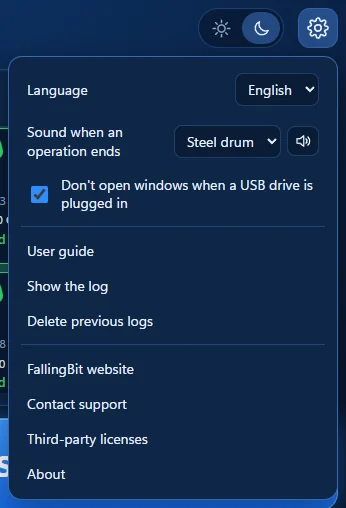
- Language: Italian or English, it changes immediately.
- Sound when an operation ends: four styles to choose from (or none); the speaker button plays it.
- Don't open windows when a USB drive is plugged in: while USBCopy is open, Windows does not open AutoPlay or File Explorer for each drive you plug in. Very handy when you plug in twenty at a time.
- Show the log: the detailed record of the session (files copied, errors, drives detected). Useful to send to support.
- Delete previous logs: deletes the records of past sessions (those older than 30 days are deleted automatically).
- Website, Contact support, Third-party licenses and About.
Hardware: USB drives and ports
How USBCopy recognizes USB drives
Every storage volume connected to Windows has a unique identifier (GUID). USBCopy recognizes USB drives by this identifier, not by the drive letter (E:, F:, G:…). This means:
- there is no 26-letter limit: when the letters run out, Windows keeps connecting drives without a letter and USBCopy still uses them (it shows them by their label);
- if Windows changes the letter of a drive, USBCopy still recognizes it correctly.
A drive is shown as a destination only if all of these conditions are true:
- Windows treats it as a removable drive;
- the device reports removable media;
- it is connected via USB or it is an SD/MMC card in a card reader;
- it is not the Windows disk and not the drive that holds the source folder.
So internal disks, SSDs and external USB hard disks (which report themselves as "fixed disks") never appear. The conditions are checked again right before erasing, formatting or ejecting.
Drives that do not appear. Some very fast USB drives (especially "portable SSDs" shaped like a USB stick) report themselves as fixed disks and are therefore excluded, for safety: one drive less is better than a disk erased by mistake. Empty card readers do not appear: the card shows up as soon as you insert it.
How many USB drives can be connected
USBCopy has no limit on the number of drives: the limit is the PC hardware. Three things matter:
- Power: a USB 2.0 port supplies at most 500 mA, a USB 3 port 900 mA. A hub without its own power supply shares this current among all the drives: with many drives some disconnect during the copy or give errors.
- Speed: all drives connected to the same hub share its link to the PC (USB 3.0: 5 Gbit/s, in practice about 350–400 MB/s in total). With 20 drives on a single hub, each one gets about a twentieth.
- USB controllers: every group of ports on the PC belongs to a controller. The USB standard allows up to 127 devices per controller (hubs included), but many USB 3 controllers run out of internal resources earlier: Windows reports "not enough USB controller resources" and some drives do not work. In practice, stay within a few dozen drives per controller.
How to add USB ports to the PC
- Powered USB hubs (with their own power supply): the simplest solution. Choose USB 3 hubs with a power supply giving at least 0.9 A per port: for example, a 10-port hub needs at least 45 W. Hubs with a switch for each port are handy for large batches.
- Spread the hubs over different ports of the PC: rear and front ports often belong to different controllers. To check: Device Manager → View menu → Devices by connection.
- PCIe USB 3 expansion cards (desktop PCs only): they add one or more new controllers. For many drives choose cards with several independent controllers (often sold as "4 controllers", one per port) and an extra power connector (SATA or Molex), so the ports can power more drives.
- Laptops: use powered hubs or docking stations connected to different USB ports (USB-C too), one per hub.
- Do not chain too many hubs: the USB standard allows at most 5 hubs in a row. One large hub connected directly to the PC is better than many small ones plugged into each other.
- Use USB 3 ports and hubs (usually blue) for USB 3 drives, with short good-quality cables.
Test before the batch. Before an important job, plug in all the drives and check that they all appear in USBCopy with the right format and capacity. If some do not appear or disappear during the copy, the problem is almost always power or the controller: add a powered hub or move some of them to another port of the PC.
Questions and problems
A USB drive does not appear
Press Refresh. If it still does not appear, it may report itself as a fixed disk (see How USBCopy recognizes USB drives) or not get enough power (see How many USB drives can be connected). Unformatted drives appear as Not formatted.
The copy is slow
The speed is that of the slowest drive and the slowest link (hub, USB 2.0 port, shared controller). With automatic verification the total time grows, because every file is read back. Cheap USB drives often write at less than 10 MB/s.
A USB drive shows an error
Hover over the card to read the problem; the full details are in the log (Settings → Show the log). If a drive fails repeatedly, it is probably faulty.
A window still opens when I plug in a drive
Check that the Don't open windows when a USB drive is plugged in setting is on. On some systems the window may appear for a moment and close by itself.
Where are the settings and the logs?
The settings are in %APPDATA%\USBCopy; the logs in the Windows temporary folder, subfolder USBCopy\logs.
Support
USBCopy is developed by FallingBit. For questions, problems or suggestions write to supporto@fallingbit.it (attaching the log helps a lot) or visit www.fallingbit.it.